Core takeaway
- The difference: a NAS exists to store files safely and share them across your network; a home server exists to run programs.
- The job decides it: not the hardware. Some people need both, and some can get both jobs from a single machine.
- Three ways to get both: a NAS that also runs apps, a home server that is also a NAS, or two separate machines.
- RAID is not a backup: RAID keeps you running when a drive dies; a backup keeps you whole when everything else does.
Disclosure: con1ainer.com participates in affiliate programs. This article contains no affiliate links. See the Affiliate & Commercial Disclosure.
The two terms get used as if they meant the same thing, and the products blur the line. A NAS can run apps. A home server can store files. So which one do you actually need?
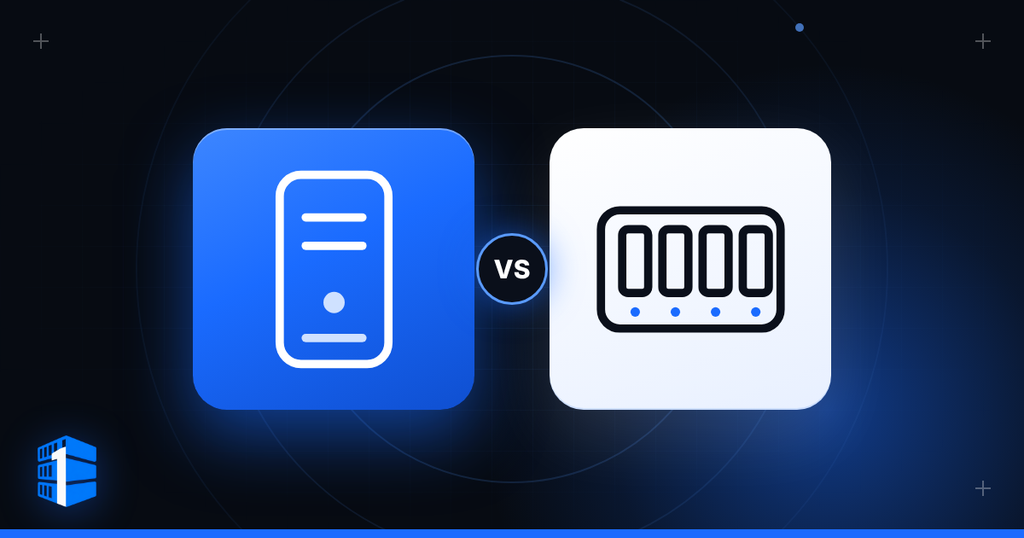
The short answer: a NAS exists to store files safely and share them across your network. A home server exists to run programs. Plenty of people need one, some need both, and some can get both jobs from a single machine. What decides it is not the hardware. It is the job you want done.
This guide explains what each is, where they overlap, what RAID really does, how to size the storage, how to combine the two, and how to choose. Every term is explained as it appears.
It builds on Best Mini PCs for a Home Server: What to Buy, which covers the server side in more depth.
What Each One Is
A NAS (network-attached storage) is a small computer built around storage. It has several drive bays, usually two to eight, an operating system focused on sharing files, and tools for protecting data. You plug it into your router, and every device in the house can save files to it, as though it were one very large shared drive.
A home server is a general-purpose computer that runs all day. In this guide that means a mini PC running Linux, as covered in the earlier posts, that runs whatever software you choose: containers, a media server, home automation, a DNS filter, virtual machines, a game server.
The key difference is the starting point.
| NAS | Home server | |
|---|---|---|
| Built around | Storage and file sharing | Running software |
| Drive bays | Several, designed for hard drives | Usually one or two, sometimes none beyond the boot drive |
| Operating system | A storage-focused one, often with a friendly web interface | A general-purpose one, usually Linux |
| Processor | Often modest, chosen for low power | Chosen for the work, from modest to strong |
| Data protection tools | Built in: RAID, snapshots, health monitoring | You add and configure them |
| Running apps | Possible, within the limits of its hardware and its vendor’s software | Its whole purpose |
| Flexibility | Moderate | High |
| Setup effort | Low to moderate | Moderate to high |
Both are small boxes that sit on a shelf, draw modest power, and run all the time. The shared building block between them is a computer. The difference is how it is set up and what it is optimized for.
Four Terms You Will Meet
Storage has its own vocabulary, and a few terms matter before any decision.
RAID (redundant array of independent disks) combines several drives so that data survives when one fails. It comes in levels:
| Level | Drives needed | What it does | What survives |
|---|---|---|---|
| RAID 0 | 2 or more | Splits data across drives for speed, with no protection | Nothing. One failed drive loses everything |
| RAID 1 | 2 | Writes identical copies on two drives, a mirror | One drive failure |
| RAID 5 | 3 or more | Spreads data and a calculated check value, called parity, across all drives | One drive failure |
| RAID 6 | 4 or more | Like RAID 5, with two sets of parity | Two drive failures |
| RAID 10 | 4 or more | Mirrors, striped together | One failure per mirrored pair |
As an example, four 8 TB drives give you 24 TB of usable space in RAID 5 and 16 TB in RAID 6 or RAID 10. For comparison, a RAID 1 mirror of two 8 TB drives gives you 8 TB, because the second drive holds a copy. RAID 5 gives you the most space and the least protection of those three. Note that drive makers count a terabyte as 1,000 gigabytes, while many operating systems report in larger units, so an 8 TB drive often shows as about 7.3 TB. That is normal.
Snapshots are saved points in time. A snapshot records how every file looked at a given moment, using very little extra space. If you delete something by accident, or ransomware encrypts your files, you can roll back to an earlier snapshot.
File systems such as ZFS and Btrfs go further than ordinary ones. They store a checksum, a small fingerprint, of every block of data, so they can detect when data has quietly gone bad and, with redundancy, repair it. This is called protection against bit rot.
Sharing protocols are the languages devices use to talk to a NAS. SMB is what Windows and Mac use for shared folders. NFS is common on Linux. You rarely choose between them, because the NAS offers both.
The one thing RAID is not
RAID is not a backup.
RAID keeps your data available when a drive fails, which saves you from downtime. It does nothing if you delete a file, if software corrupts it, if ransomware encrypts it, if a power surge kills every drive at once, or if the house floods. The copy lives in the same box.
A proper backup is a separate copy, on a separate device, ideally in a separate place. The rule of thumb is 3-2-1: three copies of your data, on two different kinds of storage, with one copy somewhere else. The method is described in VPS Backup Strategy: How to Back Up a VPS and Actually Restore It, and it applies to a NAS exactly as it does to a server.
Which Jobs Suit Which
| Job | Better fit | Why |
|---|---|---|
| Shared storage for the family | NAS | That is what it is built for |
| Backing up computers (Time Machine, Windows backup) | NAS | Plenty of space, always on, built-in backup tools |
| Archiving important documents and photos | NAS | Redundancy, snapshots, and health monitoring |
| Storing a large media library | NAS | Many drive bays, and storage costs less per terabyte |
| Streaming media that needs converting | Either, if the processor has hardware video decoding | A strong mini PC does it easily, and some NAS models do too |
| Running containers and self-hosted apps | Home server | Full control and no vendor limits |
| Virtual machines | Home server | More processing power and memory |
| Home automation, DNS filtering, small tools | Home server | Low storage needs and flexible software |
| A game server | Home server | Needs CPU and memory, not drive bays |
| Recording security cameras | NAS | Constant writing to large disks |
The pattern is clear. Jobs that are about keeping and sharing files point to a NAS. Jobs that are about running software point to a server.
Three Ways to Get Both
Most people end up wanting storage and apps. There are three common ways to arrange that.
1. A NAS that also runs apps
Many ready-made NAS products can run containers and a handful of apps. This is a fine solution when your app needs are small, such as a media server and a few light tools. It stays simple, with one box and one interface. The limits are the processor and memory the NAS ships with, which are often modest, and the way the vendor’s software limits what you can change.
2. A home server that is also a NAS
A machine with enough drive bays can run NAS software, or simply share folders itself. TrueNAS, Unraid, and OpenMediaVault are well-known options that turn a computer into a full NAS. This gives you the most freedom and the most power. It also makes you the one who configures, monitors, and fixes the storage, so you take on more responsibility.
3. Two separate machines
A NAS holds the files, and a small mini PC runs the applications, reading files from the NAS over the network. This is the cleanest arrangement. If you need to rebuild the app server, your data is untouched, and each machine does one job well.
Two rules matter in this setup:
- Keep databases off network shares. Applications that store their data in a database, including many self-hosted apps, can slow down or even corrupt the database when it lives on a network folder. Keep the database on the app server’s own SSD, and put large files, such as photos and media, on the NAS.
- Wire everything. Connect both machines to the router or a switch with Ethernet cables. Gigabit works for most things, and 2.5 Gigabit helps with large file transfers if every device in the chain supports it.
Which arrangement fits depends on how much you want to configure. Choose the first for simplicity, the second for control, and the third for a setup that can grow.
Ready-Made NAS or Build Your Own?
| Ready-made NAS | Build your own | |
|---|---|---|
| Setup | Low. Install drives and follow the wizard | Higher. Choose parts, install software, configure |
| Support | The vendor, with a warranty | Yourself, with community help |
| Software polish | Usually good, with phone apps and a clean interface | Varies by software |
| Power draw | Low, designed for it | Depends on your parts |
| Flexibility | Limited to what the vendor allows | Very high |
| Cost per drive bay | Higher | Lower |
| Processor | Often modest | Your choice |
Established NAS makers include Synology, QNAP, Asustor, TerraMaster, and UGREEN. Their ranges, software, and policies change, so check recent reviews before you buy. One thing to check in particular is drive compatibility: some makers restrict or warn about third-party drives on certain models, so read the supported-drive list for the exact model.
If you are comfortable with Linux, a self-built NAS is a good project. If you want to hand it over to a family and never think about it, a ready-made one is worth the extra cost.
Choosing Drives
Drives are the part most people underestimate, and the part that fails.
- Use drives made for NAS work. They are designed to run all day and to tolerate the vibration of sharing a box with other drives.
- Prefer CMR over SMR. These are two ways of writing data to a spinning disk. CMR (conventional magnetic recording) behaves predictably. SMR (shingled magnetic recording) packs data more densely, but can slow to a crawl during long writes and rebuilds, and is a poor fit for RAID. The specification sheet states which one a drive uses.
- Do not build RAID from USB drives. USB connections drop out, and a RAID array that loses a drive because of a cable fault can degrade or break.
- Plan for the capacity you will need in a few years, not today. Adding bays later may be impossible, and swapping every drive for bigger ones takes time.
- Consider the rebuild. After a drive fails, an array spends hours or days rebuilding onto the replacement. During that time it is vulnerable. The larger the drives, the longer that window, which is why people with large drives prefer two-drive protection such as RAID 6.
- Use an SSD for apps and a hard drive for bulk files. SSDs are fast and silent. Hard drives are cheap per terabyte.
Health monitoring is important. Check your drives with the SMART tool, which reads the drive’s own health report, and replace any that report problems:
sudo apt install smartmontools
sudo smartctl -H /dev/sda
The first line installs the tool. The second prints an overall verdict, such as PASSED, for the drive at /dev/sda. A ready-made NAS runs these checks for you and sends alerts.
Power, Noise, and Running Cost
A mini PC may idle on 6 to 15 watts. Every spinning hard drive adds roughly 4 to 8 watts when it is idle and more when it is working, so a four-bay NAS with four drives commonly draws somewhere around 25 to 40 watts, depending on the model and settings. These are rough figures, and independent reviews give better numbers for a specific model.
Use the same calculation as in the mini PC guide:
Yearly cost = watts × 24 × 365 ÷ 1000 × price per kWh
Two settings help. Drive spin-down stops the disks when nobody is using them, saving power and noise, at the cost of a short delay when the first file is requested. A cooler, ventilated spot makes drives last longer and fans run slower. Drives and fans are the two loudest parts, so place a NAS away from bedrooms.
Also budget for a UPS, because a sudden power cut during a write can damage a RAID array. See Best UPS for a Home Server: What to Buy and How to Size It
Try It: Share a Folder From a Home Server
If you already have a home server and want to test the idea before buying a NAS, you can share a folder with Samba, the program that speaks SMB on Linux.
Install it and create the shared folder:
sudo apt install samba
sudo mkdir -p /srv/shared
sudo chown youruser:youruser /srv/shared
Add a share definition at the bottom of the Samba configuration:
sudo nano /etc/samba/smb.conf[shared]
path = /srv/shared
browseable = yes
read only = no
valid users = youruserSamba keeps its own passwords, so set one for your user, restart the service, and allow Samba through the firewall, but only from your home network. Replace the range with your own:
sudo smbpasswd -a youruser
sudo systemctl restart smbd
sudo ufw allow from 192.168.1.0/24 to any app Samba
Then connect from another computer. On Windows, type this into the File Explorer address bar:
\\192.168.1.50\sharedOn a Mac, choose Go → Connect to Server in Finder and enter:
smb://192.168.1.50/sharedUse your server’s own address in both. If you later add dedicated drives, mount them under /srv/shared using their UUID in /etc/fstab, so they return after a reboot. Find a drive’s UUID with sudo blkid. Be careful with any command that formats a drive, because it erases everything on it.
Keep It Safe
A NAS holds everything you care about, which makes it a target.
- Do not expose it to the internet. NAS devices left reachable from outside have repeatedly been targeted by ransomware, which encrypts the files and demands payment. Reach it through a VPN instead. The methods are explained in How to Access a Home Server Safely: Port Forwarding vs VPN vs Tunnel
- Turn off UPnP on your router, so nothing opens a port without your knowledge.
- Keep the firmware updated. Vendors publish security fixes regularly.
- Turn on two-factor authentication for the admin account, and do not use the default one.
- Use snapshots, and, where supported, keep some of them locked so that malware cannot delete them.
- Back up the NAS itself, to another device and to somewhere off-site. A NAS that protects every other computer must also be protected.
Which Should You Get?
| Your situation | Best choice | Why |
|---|---|---|
| You mainly need shared storage and computer backups | Ready-made NAS | It is built for exactly this, with the least work |
| You want to run containers and self-hosted apps, with modest storage | Home server | Flexibility and power, without paying for empty drive bays |
| You need both, and want simplicity | NAS that also runs a few apps | One box and one interface |
| You need both, and enjoy configuring things | Home server with NAS software | Most flexible, and the best value per drive bay |
| You need both, and want the cleanest setup | NAS plus a mini PC | Each does one job, and either can be replaced alone |
| You only need a place for a few hundred gigabytes | A home server with an external or second drive | A full NAS would be overkill |
| You need many terabytes and strong data protection | NAS with RAID, snapshots, and a separate backup | This is what RAID and NAS software are designed for |
If you are unsure, start with a home server. A mini PC lets you learn, run apps, and share a folder, and you can add a NAS later when your storage needs are clear. Starting with a NAS and then wanting to run a dozen containers is harder to fix than the other way round.
Common Mistakes
| Mistake | What goes wrong | What to do instead |
|---|---|---|
| Treating RAID as a backup | One mistake, malware, or power surge destroys the data and the “backup” together | Keep a separate copy elsewhere |
| Buying the cheapest drives, or SMR drives for RAID | Slow rebuilds and early failures | Use NAS-rated CMR drives |
| Filling every bay on day one, with the same drives | Drives from one batch tend to wear out at similar times | Stagger purchases when you can, and keep a spare |
| Running databases from a network share | Slow performance, or corruption | Keep databases on local SSD storage |
| Exposing the NAS to the internet | Ransomware and break-ins | Reach it through a VPN |
| Ignoring drive health alerts | A failing drive turns into a lost array | Check SMART reports and replace drives early |
| No UPS | A power cut corrupts the array | Add a small UPS |
| Buying the largest NAS “to be safe” | Higher cost, power draw, and noise for empty bays | Match the number of bays to the next few years |
Frequently Asked Questions
Do I need a NAS, or can I just use cloud storage?
Cloud storage is simpler and protected by a company’s own redundancy, and it costs a monthly fee that grows with your data. A NAS costs more up front, keeps files at home with fast local transfers, and gives you control over your data. Many people use a NAS and also keep an off-site copy in the cloud.
Do I need RAID?
Only if you want the system to keep running when a drive fails. For a single drive of data that is also backed up elsewhere, you may not need it. If downtime would be a problem, RAID is a useful addition. It is never a replacement for backups.
Can a mini PC be a NAS?
Yes. With a couple of drives and Samba, or with NAS software such as TrueNAS or OpenMediaVault, a mini PC can share files perfectly well. The limit is the number of drive bays, which is why machines built for more drives are a better fit for large storage.
How many bays do I need?
Two is the minimum for any redundancy. Four is a common choice, giving room for RAID 5, RAID 6, or RAID 10, and growth. Consider your storage needs for several years, because bays are hard to add later.
Should I use hard drives or SSDs?
Hard drives cost far less per terabyte and are the sensible choice for large libraries of media and backups. SSDs are faster and silent, and suit apps and databases. Many setups combine an SSD for apps and hard drives for bulk storage.
How much memory does a NAS need?
It depends on the software. Basic file sharing needs very little. ZFS, a popular file system, uses memory for caching, and a commonly suggested starting point for ZFS-based systems is 8 GB. Check the documentation of the software you choose.
Can a NAS replace my VPS?
No. A NAS at home is for local files and light apps. A VPS gives you a public address, a data-centre connection, and an always-on web presence that a home internet connection cannot match. Many people run both. Read VPS vs Home Server: Cost, Control, and Practical Trade-offs
Match the Box to the Job
A NAS keeps and shares files. A home server runs software. The overlap between them is real, and the products keep blurring the line, but the question to ask never changes: is the job mostly about storing things, or about running things?
Start with what you want done. If it is storage, add bays and protection. If it is apps, add processing power and memory. If it is both, choose the arrangement that suits how much you want to configure, and put a separate copy of your data somewhere else.
RAID keeps you running when a drive dies. A backup keeps you whole when everything else does.